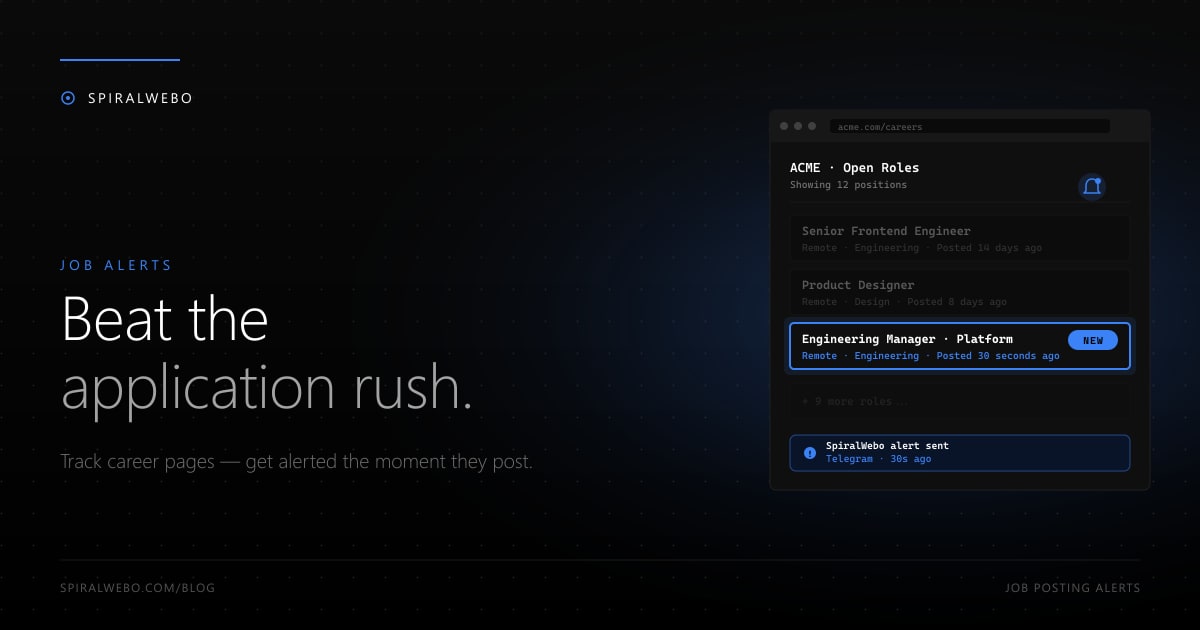
The first applicants to a job listing get screened first. The last ones get screened "if there's time" — which usually means never. Job aggregators like LinkedIn and Indeed surface listings hours or days after they're posted on a company's career page. Automated career-page monitoring closes that gap: when a target company posts a new role, you find out within minutes, not days. This guide shows you how to set it up in under five minutes for any career page on the web.
Why automated job tracking wins
Three uncomfortable truths about hiring that most job-seekers don't see:
- Most roles are filled in the first wave of applicants. Recruiters review submissions in batches. The first 20–50 applications get the most thorough screen; later applicants compete for "if we don't find someone in the first batch" attention.
- Career pages update before aggregators. A company posts a role on their own ATS first. LinkedIn and Indeed pull from that source, often with a delay of hours to a couple of days.
- Generic "job alert" emails are useless for specific companies. Aggregator alerts are based on keywords ("Senior Engineer Remote") and surface 50 listings you don't care about for every one you do.
If you're hunting for roles at 5 specific companies, monitoring their actual career pages directly puts you 24–72 hours ahead of every other applicant relying on aggregators.
How career-page monitoring works
It's mechanically the same as any other website change monitor: a tool fetches the career page on a schedule, compares the listings against the last fetch, and alerts you the moment a new listing appears. The only nuance is selecting the right element to watch.
Most modern career pages render as one of three structures:
- A simple HTML list of jobs — typical for smaller companies or in-house career sites. Easy to monitor; tighten the selector to the job-list container.
- An ATS embed (Greenhouse, Lever, Workable, Ashby) — the page renders an iframe or embed from the ATS. Sometimes the embed is JavaScript-rendered, in which case you'll need a monitor with JS rendering enabled.
- A dynamic search interface — large enterprise career sites where jobs only appear when you apply filters. Monitor the filtered URL, not the home page.
Set up career-page monitoring step-by-step
Step 1 — Pick the right URL
Don't monitor `acme.com/careers` if it's just a marketing landing page. Drill down to the actual jobs list URL. For ATS-embedded pages, monitor the embed URL directly (you can usually find it in the page source — look for a boards.greenhouse.io or jobs.lever.co URL).
For filtered searches, build the filtered URL once and bookmark it. Example: instead of monitoring all of LinkedIn's jobs, monitor a search for "Senior Backend Engineer + Remote + posted last 24 hours" — that URL is what you save.
Step 2 — Identify the job-list element
Open the page and look for the container that holds the actual job listings. This is usually a <ul> or <div> with multiple repeated child elements (one per job). With SpiralWebo's visual selector, click directly on the listings container — the tool generates the CSS selector automatically.
If you only care about specific roles (not every new posting), use a more granular selector like the engineering-team container, or set up multiple monitors with different filters.
Step 3 — Pick a 1-hour check frequency
Faster than 1 hour is overkill — most companies don't post jobs at 3 AM. Slower than every few hours and you risk missing the first-applicant window. 1-hour checks balance speed against polite crawling. For LinkedIn or other heavily protected sites, daily is safer.
Step 4 — Route to Telegram for instant push
Email alerts arrive 5–15 minutes after the change is detected. Telegram alerts arrive in seconds. For job hunting, that 10-minute gap is irrelevant most of the time — but for highly-competitive roles at hot startups, it can be the entire window between "first applicant" and "buried under 200 résumés."
Beyond company career pages
The same monitor pattern works for several adjacent use cases:
- LinkedIn job searches. Build a saved search URL for your specific filters, monitor it. LinkedIn rate-limits aggressively, so use daily checks and consider running through their official RSS feed where available.
- Government job sites. USAJobs.gov, Civil Service postings, EU Personnel Selection Office — these update on slow but predictable schedules. Daily monitoring is plenty.
- University faculty postings. Tenured faculty searches, postdoc opportunities. Most academic career pages update in distinct cycles aligned with the academic calendar.
- Niche job boards. Remote-only boards, industry-specific aggregators, hidden gems like specific company "we're hiring" pages.
One Telegram channel called "job-alerts" with 5–10 monitors feeding it gives you a real-time picture of your specific job market — much narrower and more actionable than any generic aggregator can produce.
Frequently asked questions
What about ATS-protected pages?
Most ATS embeds (Greenhouse, Lever, Workable, Ashby) are publicly accessible and can be monitored normally. The ones that require account login (some enterprise career portals, internal mobility platforms) are off-limits without violating their TOS — skip those and focus on public listings.
Can I scrape LinkedIn jobs?
Carefully. LinkedIn's TOS prohibits automated access, and they actively detect and block scrapers. The clean alternative: use LinkedIn's official RSS feed for saved searches (where available), or use Telegram channels that aggregate LinkedIn jobs into a public stream.
Will I get blocked by the company's site?
Almost never at hourly check frequencies. Career pages aren't aggressive about bot detection because they want their listings to be discoverable. If you do get blocked, slow down to every 4 hours.
How do I monitor for specific roles only?
Two approaches. First: use a more granular CSS selector targeting just the team or function you care about (e.g., the "Engineering" tab specifically). Second: monitor the whole career page but use a regex or keyword filter at the alert layer to only fire when the new job text contains your target keywords.
Is this legal?
Yes — public career pages are public data. The leading US precedent (hiQ Labs v. LinkedIn, Ninth Circuit 2022) explicitly affirmed that scraping public web pages does not violate the Computer Fraud and Abuse Act. For pages behind a login, read the TOS — usually the answer is "don't."
Can I share alerts with my team or family?
Yes — set up a Telegram channel and add the SpiralWebo bot as an admin. Anyone subscribed receives every detected job. Useful for couples job-hunting together or for friend groups in the same industry. Setup walkthrough here.
Set up your first job alert today
Pick the company you most want to work for. Find their career page URL. Set up an hourly monitor with Telegram alerts in 3 minutes. The next time they post a role you'd want, you'll know within an hour — and you'll be applicant #1, not applicant #51.
Start your first job-page monitor free →
Once you have one running, the natural extension is 5–10 monitors covering your target companies + a couple of LinkedIn saved searches, all flowing into one Telegram channel. That's a real-time job feed tailored to exactly the opportunities you'd actually take.